how-to
How to compress images online — free, and nothing uploaded
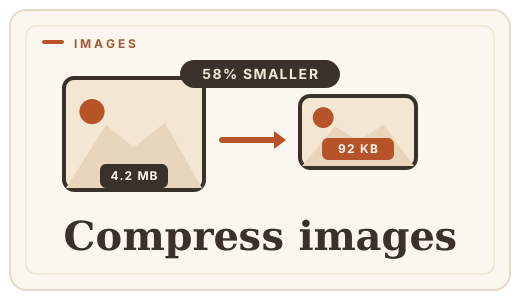
"Compress image online" usually means "upload my photo to some server". It does not have to. Optimal Convert compresses images the same way the heavy tools do — by choosing a better format and a sane encode quality — but every byte of work happens in your browser tab. Drop a photo, download a smaller copy, and your file never leaves your device. The most effective move: convert JPG to WebP, which typically cuts a photo’s size by 25–35% with no visible difference.
What compressing really means here
There are two ways to make an image file smaller, and they are easy to confuse. Re-encoding throws away detail — the "quality" dial on classic compressors. Format choice is subtler: WebP describes the same image with less data than JPG, and far less than PNG, so switching formats shrinks the file without touching quality.
One thing this tool deliberately does not do is resize. A 4000×3000 photo stays 4000×3000 — compression here means fewer bytes with the same pixels, via format and encode quality, never a change in dimensions.
Step by step
1 · Open the image converter
Open the image converter in your browser — any device, no account, no upload.
2 · Drop your images
Drag photos into the drop zone or click to browse. Add several at once; each becomes its own compressed file.
3 · Choose the output
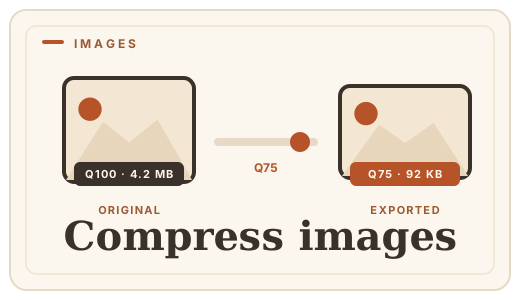
For photos, WebP is the best default — typically 25–35% smaller than JPG at the same look. JPG is the compatibility fallback. Pick PNG only if you need lossless pixels or transparency — it is the wrong choice for shrinking a photo.
4 · Download
The conversion runs in your tab and each result downloads. Nothing is uploaded, stored or counted, and you can even work offline after the first load.
What to expect
- JPG photo → WebP: the everyday win, 25–35% smaller at the same look.
- PNG screenshot or UI art → WebP: often dramatically smaller, especially with flat colors.
- Anything → PNG: lossless, so usually larger than a compressed JPG — choose it for exactness, not size.
- A photo already compressed hard: re-compressing saves little — the original encode already did the work.
When to keep the original
Compression is for copies, not archives. Keep the untouched original — the RAW, the high-quality JPG or the camera file — and compress only what you send, upload or publish. If you ever need to re-export, the original is the thing that still has the detail.
Frequently asked questions
Does compressing reduce quality?
Only where lossy encoding is involved. Optimal Convert writes WebP and JPG at 92% quality by default — visually lossless for almost all photos. PNG output is lossless. If you need to be certain, keep the original and compress a copy.
Will it shrink my image’s dimensions?
No. This compressor changes format and encode quality; the pixel dimensions never change. If your photo is bigger than it needs to be, resize it with an image editor first — that is the single biggest saving available.
Why is my PNG still huge?
Because PNG is lossless: it stores every pixel exactly, which makes it the largest common format for photos. Use WebP or JPG for photographic content.
Can I compress several images at once?
Yes — drop them all in one go and each downloads as its own compressed file. There is no limit and nothing is queued on a server.
Are my files really not uploaded?
Correct. There is no upload endpoint — the images are read, encoded and downloaded entirely in your browser tab, so the bytes never leave your device.
Convert it
Each conversion runs in your browser — free, unlimited, and nothing is uploaded.
Share this guide
Ready-made social images for this post — sized for Facebook/Open Graph, Instagram and Pinterest. They match the card link previews show, and the same art is rendered locally for every format below.
Facebook · Open Graph
og:image — also LinkedIn, X and Slack previews
Download PNG
Instagram feed
square post · 1080px is Instagram’s native size
Download PNG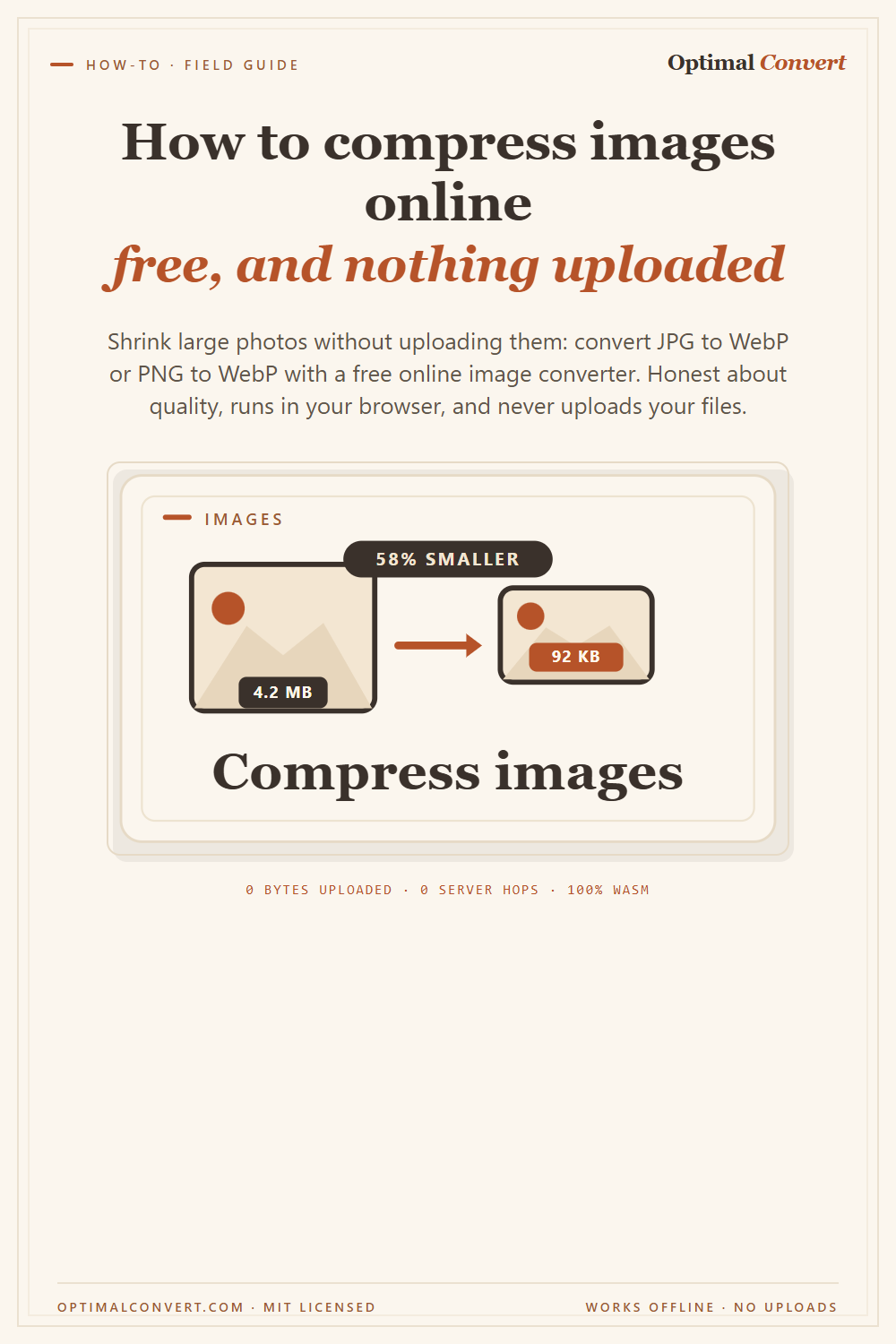
Pinterest pin
2:3 ratio · Pinterest’s recommended pin size
Download PNGKeep reading
What is WebP?
WebP is Google’s image format that makes web images 25–35% smaller with no visible quality loss. A plain-English explainer — and how to convert images to WebP online, free, in your browser.
Read the guide →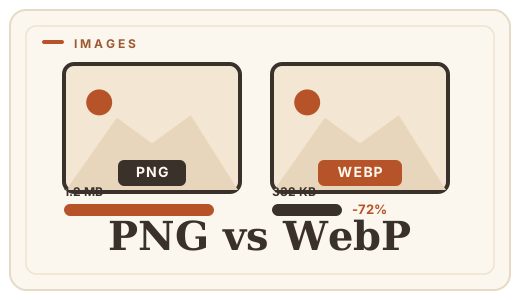
PNG vs WebP — which to ship?
PNG vs WebP explained: WebP matches PNG’s losslessness at roughly half the file size. See when to switch — then convert PNG to WebP with a free PNG format converter that runs entirely in your browser.
Read the guide →
JPG vs PNG — which image format?
JPG vs PNG explained: compression, transparency, file size, and when each wins. Convert between them online — free, in your browser, no uploads.
Read the guide →
How to optimize photos for the web
Cut page weight without visible quality loss — convert photos to WebP or re-encode to JPG free, in your browser. An honest guide, no uploads.
Read the guide →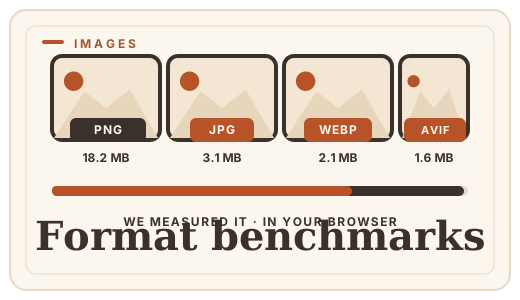
Image format benchmarks 2026
Real file-size numbers for WebP, JPG, PNG, and AVIF at equal visual quality, measured in-browser. No upload, no server — just data.
Read the guide →