image formats
PNG vs WebP: which image format should you ship?
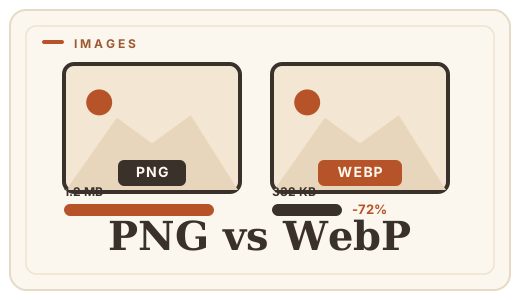
WebP is the format that quietly changed web performance. Google introduced it in 2010 as a format that could do everything the old formats did, but smaller. Compared to PNG, a lossless WebP is typically 25–35% smaller — sometimes more — with identical pixels. Compared to JPG, lossy WebP is usually 25–35% smaller at the same visual quality. That is why every modern browser, and most image tools, now treat WebP as the default export. You can convert PNG to WebP (or WebP back to PNG) in your browser in seconds.
What WebP is
WebP is two codecs under one container. The lossy variant uses VP8/VP9-style block prediction to remove redundancy the way JPG does, but more efficiently. The lossless variant uses a combination of prediction, palette and entropy coding to shrink data without dropping a single pixel. A single format, one file extension, two very different compression engines underneath.
Support is not a concern anymore. WebP decodes in Chrome, Edge, Firefox, Safari 14+, Android, and is handled natively by WordPress and most CMS and image libraries. If you are targeting the web, WebP is safe.
WebP vs PNG, point by point
| PNG | WebP | |
|---|---|---|
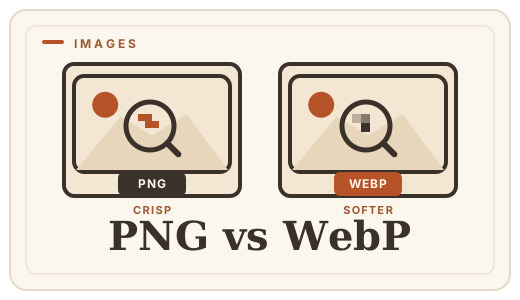
| Lossless mode | Yes | Yes, ~25–35% smaller |
| Transparency | Yes | Yes |
| Lossy mode | No | Yes — with transparency, too |
| Animation | No | Yes (animated WebP) |
| Browser support | Universal | Universal (Safari 14+) |
When PNG is still the right call
PNG is a 30-year-old standard with a guarantee WebP does not quite match: universal, deterministic compatibility with every tool ever written. If your image will end up in a print pipeline, a proprietary CMS, an email client older than 2019, or a system you do not control, PNG is the safe envelope.
It also keeps one workflow advantage: PNG is the de-facto interchange format for design tools, and an easy lossless master to keep and re-export from. Many teams keep the PNG master and ship WebP to the web — the best of both.
The practical move
For web images, the default export should be WebP, with PNG reserved for master files and unknown destinations. Converting is lossless in the pixel sense — a PNG→WebP→PNG round trip returns the same pixels — so switching is not a commitment.
Frequently asked questions
Is WebP better than PNG?
For most web use, yes: same pixels, 25–35% smaller files. PNG remains the right choice for master files, print pipelines and software that predates WebP support.
Does converting PNG to WebP lose quality?
Not in lossless mode. A lossless WebP stores the exact same pixels as the source PNG — the file is smaller, the image is identical.
Does WebP support transparency?
Yes. Lossless WebP supports full alpha transparency exactly like PNG, and even lossy WebP can carry a transparency channel.
Can I convert WebP back to PNG?
Yes — and because WebP lossless is lossless, converting back returns the original pixels. Use the [WebP to PNG converter](/convert/webp-to-png).
Convert it
Each conversion runs in your browser — free, unlimited, and nothing is uploaded.
Share this guide
Ready-made social images for this post — sized for Facebook/Open Graph, Instagram and Pinterest. They match the card link previews show, and the same art is rendered locally for every format below.
Facebook · Open Graph
og:image — also LinkedIn, X and Slack previews
Download PNG
Instagram feed
square post · 1080px is Instagram’s native size
Download PNG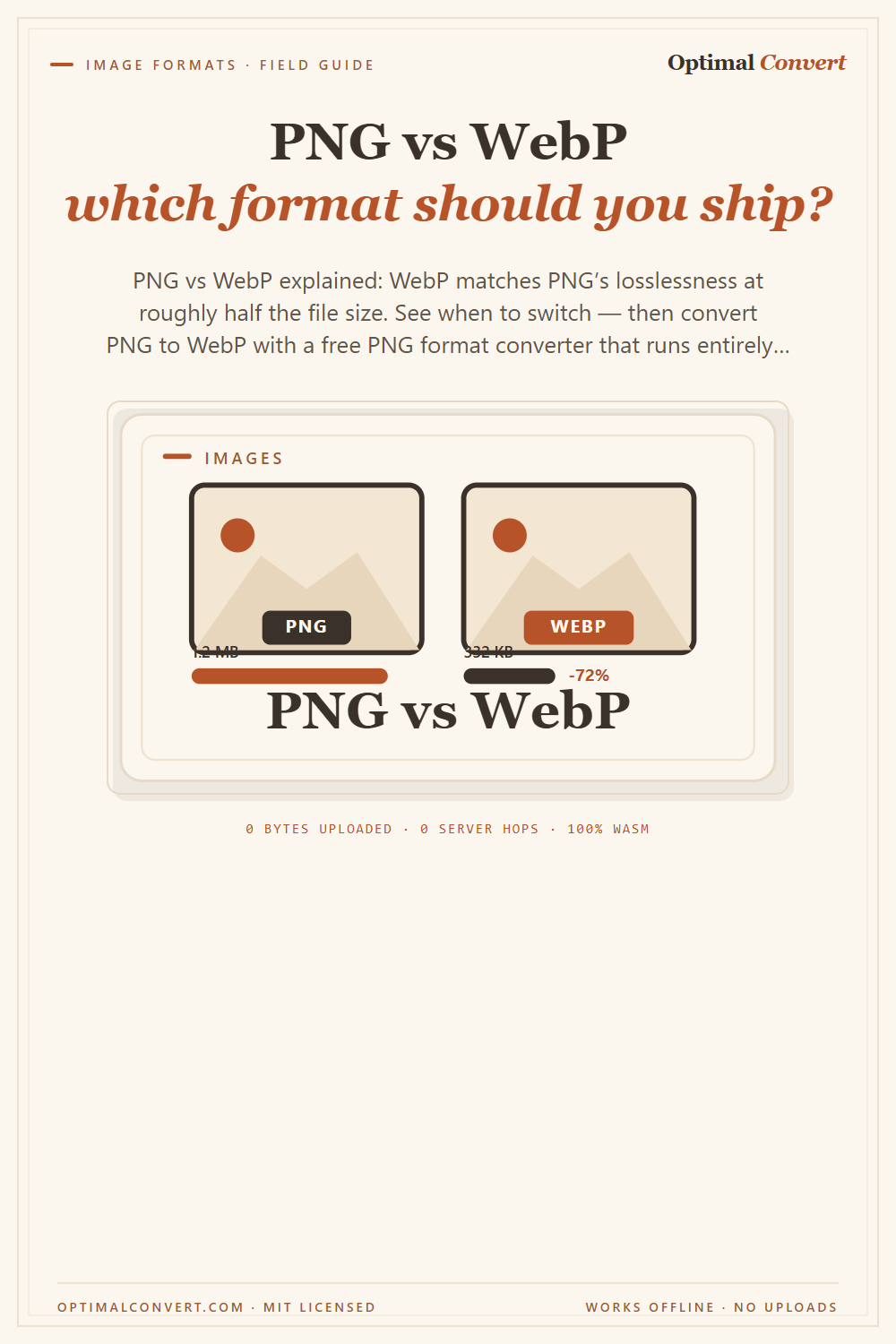
Pinterest pin
2:3 ratio · Pinterest’s recommended pin size
Download PNGKeep reading
JPG vs PNG — which image format?
JPG vs PNG explained: compression, transparency, file size, and when each wins. Convert between them online — free, in your browser, no uploads.
Read the guide →
What is WebP?
WebP is Google’s image format that makes web images 25–35% smaller with no visible quality loss. A plain-English explainer — and how to convert images to WebP online, free, in your browser.
Read the guide →
HEIC vs JPG — iPhone photo compatibility
Why your iPhone saves HEIC, when it becomes a problem, and how to convert HEIC to JPG online in your browser — free, no uploads, no app to install.
Read the guide →
How to optimize photos for the web
Cut page weight without visible quality loss — convert photos to WebP or re-encode to JPG free, in your browser. An honest guide, no uploads.
Read the guide →