image formats
HEIC vs JPG: iPhone photos and everyday compatibility
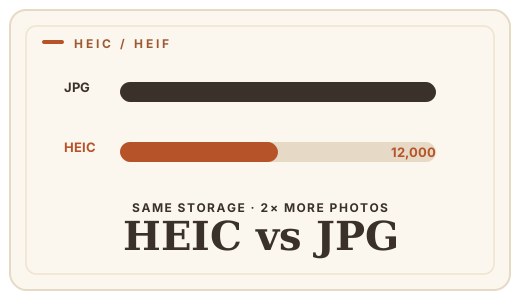
If your iPhone is set to High Efficiency mode, your photos are HEIC — a modern format that holds roughly twice the detail of a JPG at the same file size. It is a great format for your phone and a constant friction everywhere else: most websites, email clients, office suites and older software simply do not open it. The fix is one quick HEIC to JPG conversion, and you can do it entirely in your browser.
Why your iPhone saves HEIC in the first place
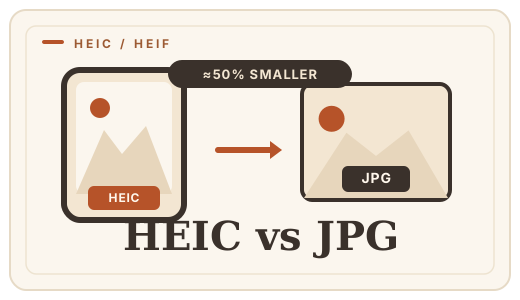
HEIC is the file format of the High Efficiency Image File Format (HEIF) standard. Apple adopted it with iOS 11 because HEVC-based compression stores the same photo at roughly half the size of a JPG — which matters a lot for a 48-megapixel camera and a storage plan. For the phone’s purposes it is strictly better.
The catch is that "strictly better for the phone" has not translated into universal support. Windows needs a codec installed (and even then it is unreliable), Android support is inconsistent, and a surprising number of web forms, email gateways and office suites reject .heic files outright.
HEIC vs JPG, quickly
| HEIC | JPG | |
|---|---|---|
| Compression | Modern (HEVC), ~2× smaller | Older (lossy), larger |
| Quality per megabyte | Excellent | Good |
| Open everywhere | No — spotty support | Yes, universal |
| Used by | iPhones (High Efficiency) | Everything else |
| Transparency | No | No |
When you must convert
You do not need to convert a photo you are keeping on your phone — the iPhone handles its own format fine. You convert when the file has to go somewhere else: attaching to a job application, uploading to a form that rejects the extension, sending to someone on an older computer, or importing into software that lists HEIC as unsupported.
The clean rule: keep HEIC as your archive, convert a JPG copy for every destination. Because nothing in the conversion is uploaded, you can even do it with client or work photos without a data-processing concern. Convert HEIC to JPG (or PNG or WebP) right here.
A note on the JPG you get
Converting HEIC to JPG is a real re-compression: the HEVC-decoded pixels are re-encoded as JPG. Optimal Convert encodes at 92% quality by default, which is visually lossless for almost all photos, and you can raise it if you are editing further. You are not losing the phone’s detail advantage — you are trading file size for compatibility, which is exactly what the destination needs.
Frequently asked questions
How do I stop my iPhone saving HEIC?
Settings → Camera → Formats → change "High Efficiency" to "Most Compatible". Note that this only affects new photos — existing HEIC files still need converting.
Is HEIC better quality than JPG?
At the same file size, yes — HEIC stores noticeably more detail because it uses modern HEVC compression. That is exactly why Apple chose it. The trade-off is compatibility, not quality.
Can I convert HEIC to JPG on my computer?
You do not need to install anything. Use Optimal Convert’s [HEIC to JPG converter](/convert/heic-to-jpg) — the libheif decoder runs as WebAssembly inside your browser, so the file never leaves your device.
Will converting HEIC to JPG upload my photos?
No. Optimal Convert has no upload endpoint — the file is decoded and re-encoded entirely in your browser tab. This also means you can convert offline after the first visit.
Convert it
Each conversion runs in your browser — free, unlimited, and nothing is uploaded.
Share this guide
Ready-made social images for this post — sized for Facebook/Open Graph, Instagram and Pinterest. They match the card link previews show, and the same art is rendered locally for every format below.
Facebook · Open Graph
og:image — also LinkedIn, X and Slack previews
Download PNG
Instagram feed
square post · 1080px is Instagram’s native size
Download PNG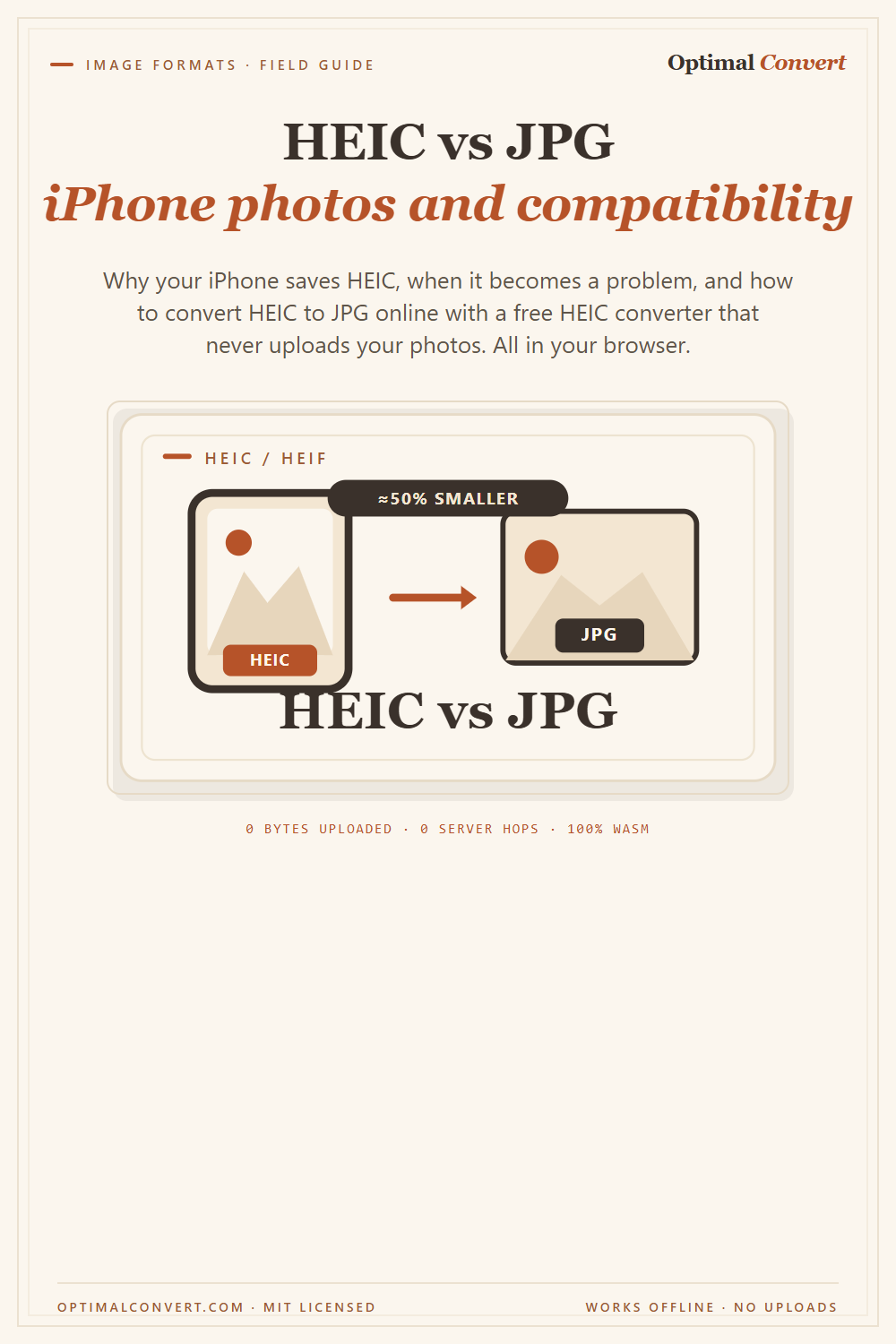
Pinterest pin
2:3 ratio · Pinterest’s recommended pin size
Download PNGKeep reading
How to convert HEIC to JPG on any device
Convert HEIC to JPG online in your browser — no app to install, no photo uploaded. Step-by-step for every device.
Read the guide →
JPG vs PNG — which image format?
JPG vs PNG explained: compression, transparency, file size, and when each wins. Convert between them online — free, in your browser, no uploads.
Read the guide →
What is WebP?
WebP is Google’s image format that makes web images 25–35% smaller with no visible quality loss. A plain-English explainer — and how to convert images to WebP online, free, in your browser.
Read the guide →
HEIC vs HEIF — explained
HEIC and HEIF are the same codec in different containers. A plain-English explainer, plus a free online converter that turns HEIC into JPG or PNG, no uploads.
Read the guide →