how-to
How to make a PDF from images — free, and nothing uploaded
You scan a contract, screenshot a document, photograph a receipt — and now you need one PDF instead of five loose images. Doing it in your browser is the simplest route there is: a free document-to-PDF converter with no account, no queue, and no file leaving your device. Combine images into a PDF with Optimal Convert, and this guide walks you through it, including what to expect from the result.
What you get
Optimal Convert takes every image you drop — JPG, PNG, WebP, HEIC, GIF, SVG, AVIF and more — and assembles them into a single multi-page PDF, one image per page, in the order you added them. That makes it ideal for receipts, scans, ID documents, slide decks and photo sets you need to send as one file.
The whole pipeline runs in your tab: images are decoded locally, the PDF is written on your device, and only you have the result. There is no upload endpoint, so it also works offline after the first visit.
Step by step
1 · Add your images
Open the Image to PDF converter and drag your images into the drop zone, or click to browse. Select them in the order you want them in the finished PDF — the sequence you add is the order you get.
2 · Check the output is set to PDF
The converter is preconfigured to PDF, and multiple images are automatically combined into one document. If you only need a single page, add just one image.
3 · Download the PDF
The conversion runs locally and your browser saves the finished PDF. Nothing was uploaded at any point — the only copy that ever existed was in your tab and on your device.
A few honest notes
- Each image becomes one PDF page at its natural size — this is a simple, fast way to combine documents, not a layout tool.
- PDFs created from photos are usually larger than a compressed JPG; that is expected, and it is exactly what a document platform expects to receive.
- If your images are scans or documents and you need text-searchable output, that needs OCR, which this tool does not do — keep the images as the source of truth.
Frequently asked questions
Can I combine images of different types into one PDF?
Yes. Drop a JPG, a PNG and a HEIC together and they all become pages of the same PDF, in the order you added them.
How many images can I put in one PDF?
There is no hard limit. Everything runs on your device, so the practical ceiling is your browser’s memory — a few dozen photos is comfortable.
Is it really free and unlimited?
Yes — no account, no watermark, no daily cap. Since conversion happens in your browser, there is nothing to meter.
Will my images be uploaded?
No. There is no upload endpoint — the images are read, combined and downloaded entirely within your browser tab. See the [Image to PDF converter](/convert/image-to-pdf).
Convert it
Each conversion runs in your browser — free, unlimited, and nothing is uploaded.
Share this guide
Ready-made social images for this post — sized for Facebook/Open Graph, Instagram and Pinterest. They match the card link previews show, and the same art is rendered locally for every format below.
Facebook · Open Graph
og:image — also LinkedIn, X and Slack previews
Download PNG
Instagram feed
square post · 1080px is Instagram’s native size
Download PNG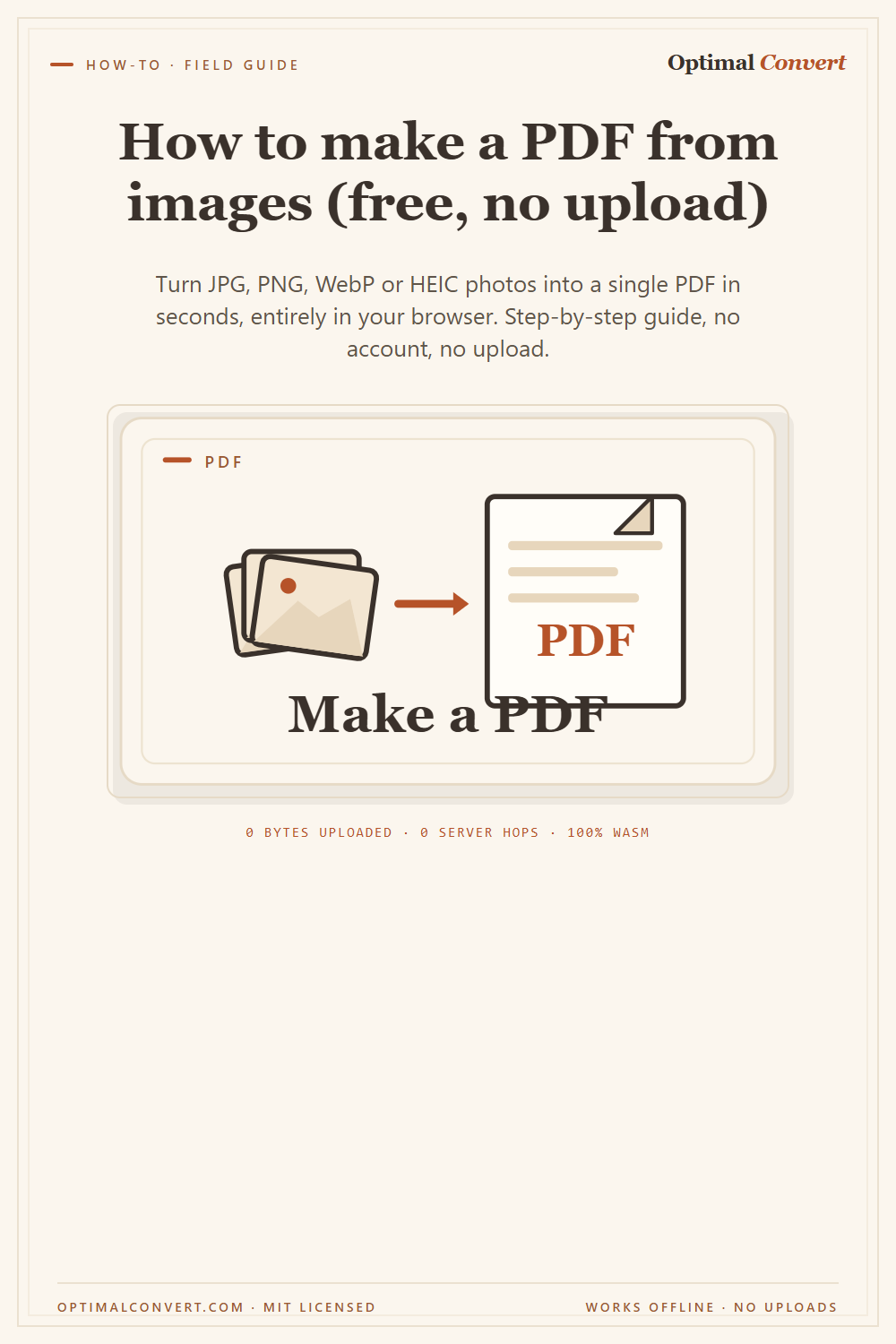
Pinterest pin
2:3 ratio · Pinterest’s recommended pin size
Download PNGKeep reading
JPG vs PNG — which image format?
JPG vs PNG explained: compression, transparency, file size, and when each wins. Convert between them online — free, in your browser, no uploads.
Read the guide →
HEIC vs JPG — iPhone photo compatibility
Why your iPhone saves HEIC, when it becomes a problem, and how to convert HEIC to JPG online in your browser — free, no uploads, no app to install.
Read the guide →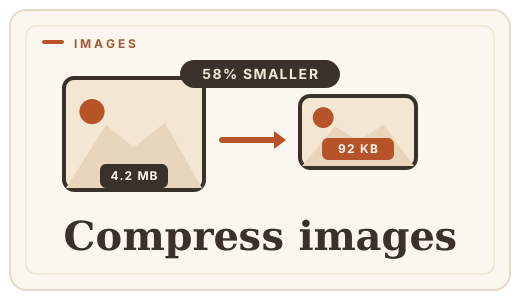
How to compress images online
Shrink large photos without uploading them — convert JPG to WebP or PNG to WebP free, in your browser, and honest about quality.
Read the guide →